taco vs. Screens 5
Last verified November 27, 2026
How taco handles a phone screen differently from VNC
Both images show real taco sessions on iPhone Duo — reshaped macOS display above the hinge and a fused Mac keyboard + trackpad below, with no floating iOS keyboard covering your window.
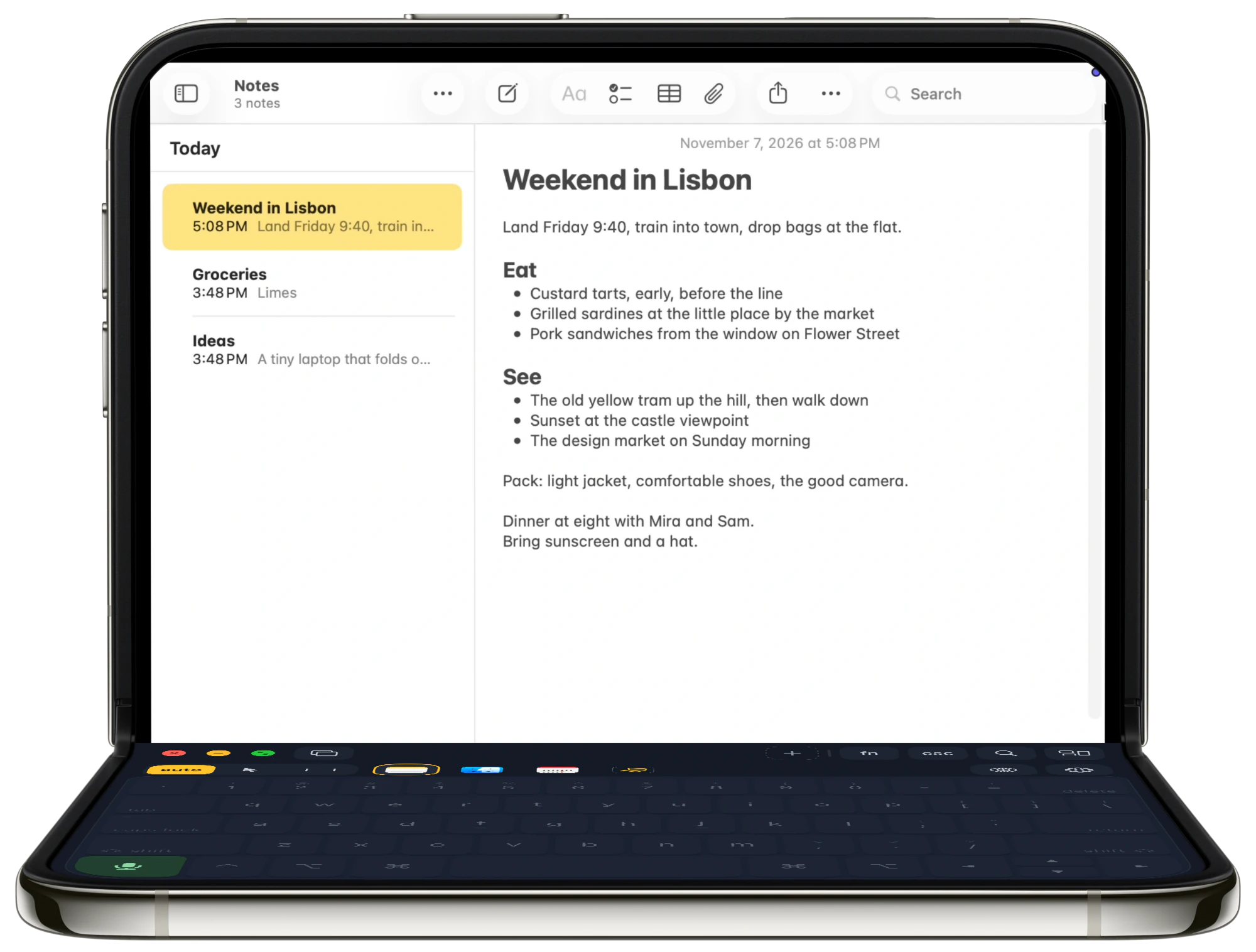
Rather than letterboxing a 5K monitor over VNC, taco matches your phone’s aspect ratio and text scale, then restores your Mac’s windows when you leave.
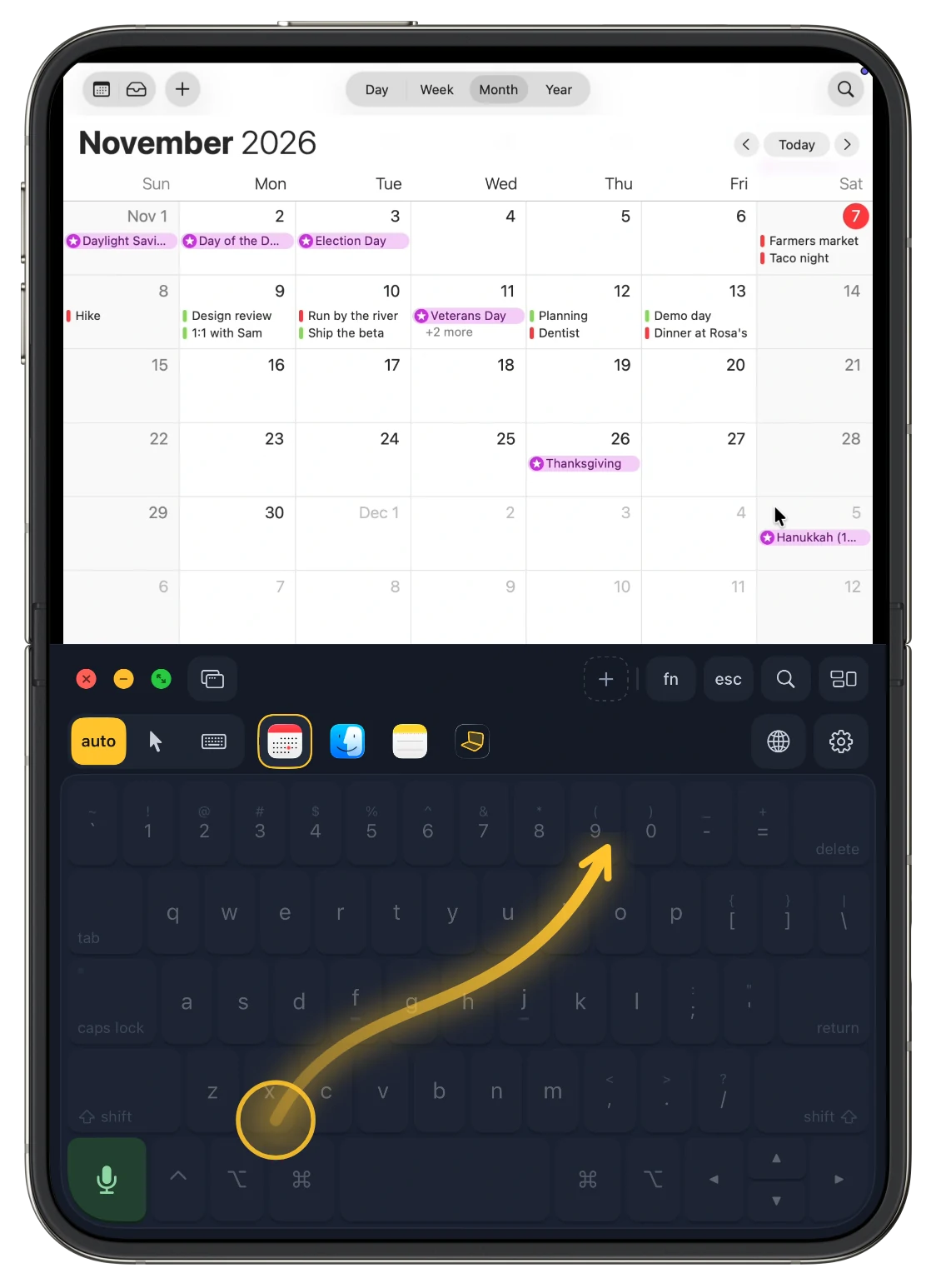
Tap for real Mac keys (⌘ ⌥ ⌃, esc, fn, arrows) or slide across the same keys to point, scroll, and right-click.
| Category | taco | Screens 5 (Edovia) |
|---|---|---|
| Pricing (Nov 2026) | Free iOS app · Mac $19/yr (up to 10 Macs) | $4.99/mo, $29.99/yr, or $249.99 lifetime (universal) |
| iPhone Duo folded laptop mode | Native 90° laptop layout: exact-aspect virtual display above hinge; fused keyboard + trackpad, live window previews & per-app SF Symbol shortcuts below | Yes — Laptop Mode (v5.10.6+) puts the Mac screen on top with a virtual keyboard and trackpad below |
| Display reshaping & window restore | Exact-aspect virtual display + live readability scale; crash-safe pixel-for-pixel window layout restoration on disconnect | macOS Screen Sharing / VNC (High Performance mode resizes the remote desktop to fit, without crash-safe window layout restoration) |
| Keyboard, trackpad & dictation | Fused Mac keyboard + trackpad on the exact same surface (zero mode switching), edge-touch key prediction, plus green dictation key (on-device Apple speech or Wispr Flow / Superwhisper / MacWhisper) | Virtual keyboard, trackpad, customizable shortcut bar, and dictation options (separate typing and trackpad controls) |
| Try before Mac setup | Built-in interactive Practice Mac inside the free iOS app | Requires connecting to a configured host computer |
| Away-from-home connectivity | Zero-cloud direct P2P over your own Tailscale tailnet (no vendor account or Screens Connect relay) | Screens Connect account + relay, Tailscale, or manual port forwarding / SSH tunnel |
| Protocol & encryption | Custom HEVC stream over Noise_XX_25519_AESGCM_SHA256 with Curve25519 key pinning | Apple Screen Sharing / VNC (plus SSH tunneling support) |
| Supported platforms | macOS 26+ hosts; iPhone Duo, iPhone & iPad (iOS/iPadOS 27.1+) clients | macOS, Windows, Linux & Raspberry Pi hosts; iPhone, iPad, Mac & Vision Pro clients |
Where taco feels noticeably better
Edovia’s Screens 5 is a polished, long-running Apple remote desktop app, and its Laptop Mode (v5.10.6+) brought real folded iPhone Duo support alongside Apple’s High Performance Screen Sharing. Where taco pulls ahead is how deeply it commits to macOS-only ergonomics:
- Fused keyboard + trackpad on one surface: Tap to type full Mac chords (
⌘K,⌃C,esc, arrows) with edge-touch key prediction, or slide across the exact same keys to point, scroll, and right-click — zero mode switching. - Dynamic virtual display reshaping & crash-safe window restore: Instead of shrinking a 5K desktop over VNC, taco matches your Duo’s aspect ratio and text scale, then restores your Mac’s windows when you leave — even if Wi-Fi drops unexpectedly.
- Per-app hinge SF Symbol shortcuts & live window previews: Switch Mac windows, trigger traffic lights, Spotlight, Mission Control, or app-specific shortcuts right along the hinge.
- Voice dictation key & built-in Practice Mac: Hold the green key for on-device dictation or trigger Wispr Flow, Superwhisper, or MacWhisper on your Mac — and test the whole deck free in taco’s built-in Practice Mac before touching your Mac.
- Zero-cloud Noise_XX P2P: Direct Curve25519-pinned AES-256-GCM sessions over Wi-Fi or Tailscale with no Screens Connect account or vendor relay.
Where Screens 5 is the stronger tool
If you want Laptop Mode on iPhone Duo plus access to Windows, Linux, or Raspberry Pi machines, use an Apple Vision Pro, or keep a Mac on an older macOS release, Screens 5 covers ground taco intentionally doesn’t. Screens 5 also supports connecting via Edovia’s Screens Connect without installing Tailscale on both devices.
Frequently asked questions
How is taco different from Screens 5’s Laptop Mode on an iPhone Duo?
Screens 5 (v5.10.6+) ships a great Laptop Mode for iPhone Duo that puts your Mac screen on top and a virtual keyboard and trackpad below. taco goes further on Mac-first ergonomics: keys and trackpad are fused onto the exact same surface (tap to type, slide across the keys to point with zero mode switching), adds edge-touch key prediction, dynamically reshapes a virtual display and restores every Mac window even after a sudden disconnect, puts per-app SF Symbol shortcuts and live window previews along the hinge, includes a built-in Practice Mac and Wispr Flow / MacWhisper dictation key, and connects direct peer-to-peer with Noise_XX without Screens Connect.
Does taco require macOS Screen Sharing (VNC) to be turned on?
No. taco uses its own lightweight Mac menu-bar companion app and streams over a direct Noise_XX_25519_AESGCM_SHA256 encrypted HEVC channel, which lets it dynamically reshape your virtual display, restore windows on disconnect, and show live window previews in the hinge bar.
When is Screens 5 a better choice than taco?
Screens 5 is better if you need to connect to Windows, Linux, or Raspberry Pi machines, run macOS versions older than macOS 26, want an Apple Vision Pro client, or prefer a universal lifetime license with Edovia’s hosted Screens Connect relay.
Try taco on your iPhone Duo, iPhone, or iPad
Test the keyboard and trackpad right now using the built-in Practice Mac in the free iOS app — then pair your own Mac in a minute.
Free for 7 days, no credit card required. Then $19 a year.
Get taco for iPhone and iPad, free on the App Store.
Keep reading
All 9 Mac remote apps compared (2026)
See taco, Screens 5, Jump Desktop, Yosei, Sill, and Remio in one table.
taco vs. Jump Desktop
Compare taco against Jump Desktop’s Fluid protocol and one-time pricing.
How to screen share Mac to iPhone
Why Apple’s built-in Screen Sharing needs a client and how each approach works.