How to screen share and control your Mac from an iPhone or iPhone Duo
Last verified November 24, 2026 · Covers macOS 26+ & iOS 27.1+
What Mac-to-iPhone screen sharing looks like on real devices
Your real Mac screen on the top half, a Mac keyboard and trackpad permanently below — adapted cleanly to an iPhone Duo, a regular iPhone, or an iPad.
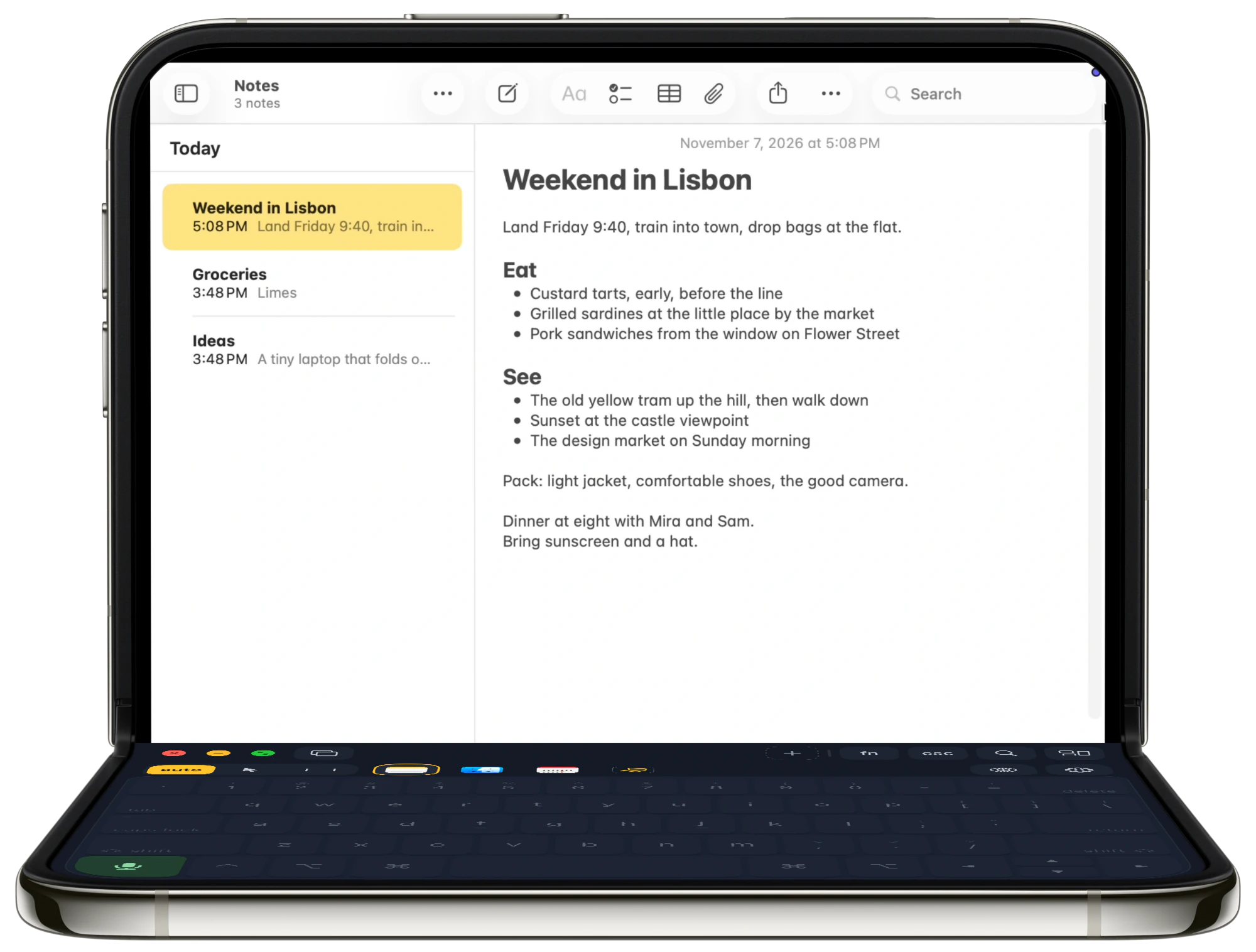
90° laptop pose keeps your reshaped Mac screen upright and your hands flat on real Mac keys.
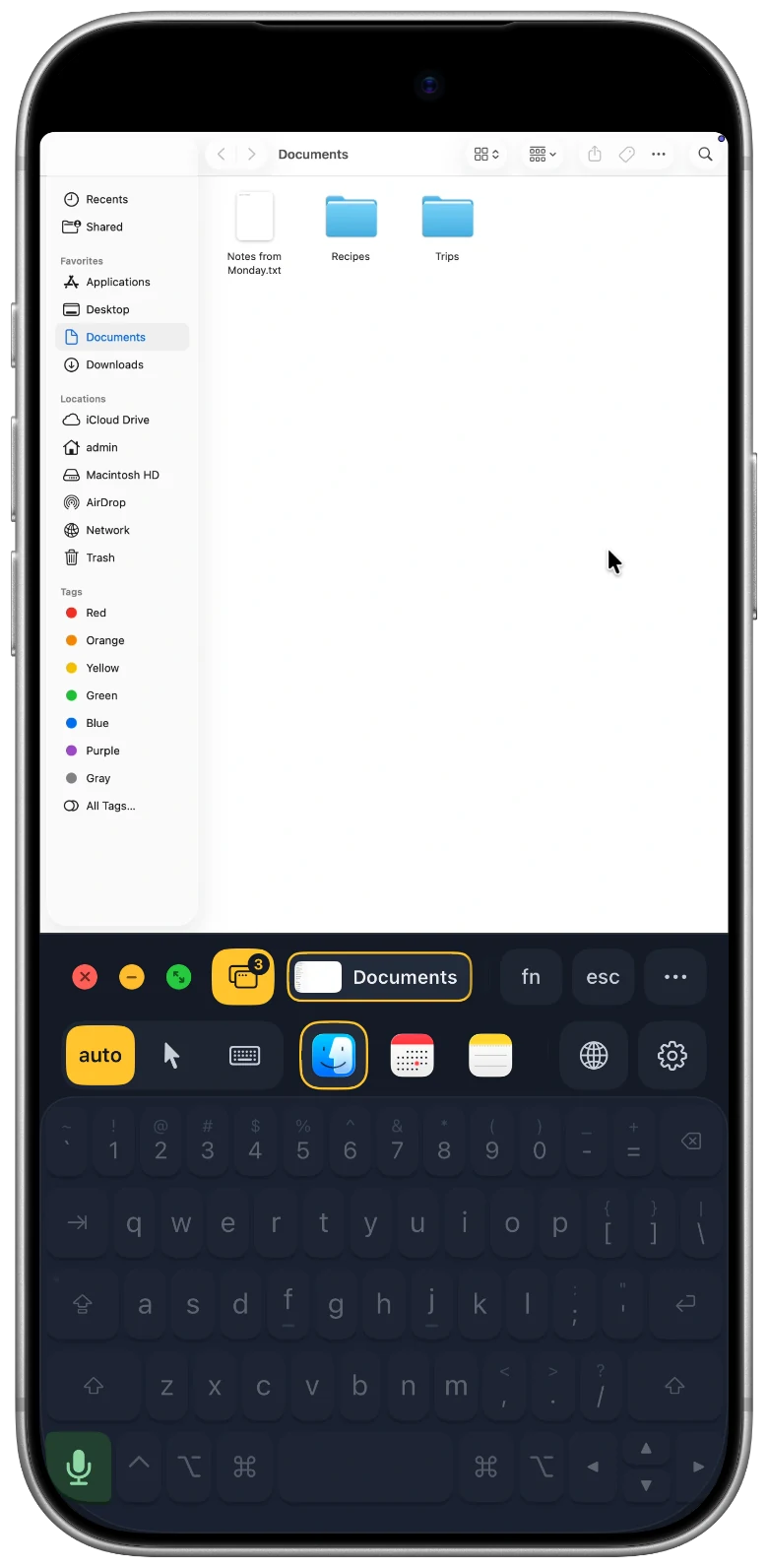
Even on a standard iPhone, Finder, live window previews, and Mac shortcuts stay crisp and reachable.
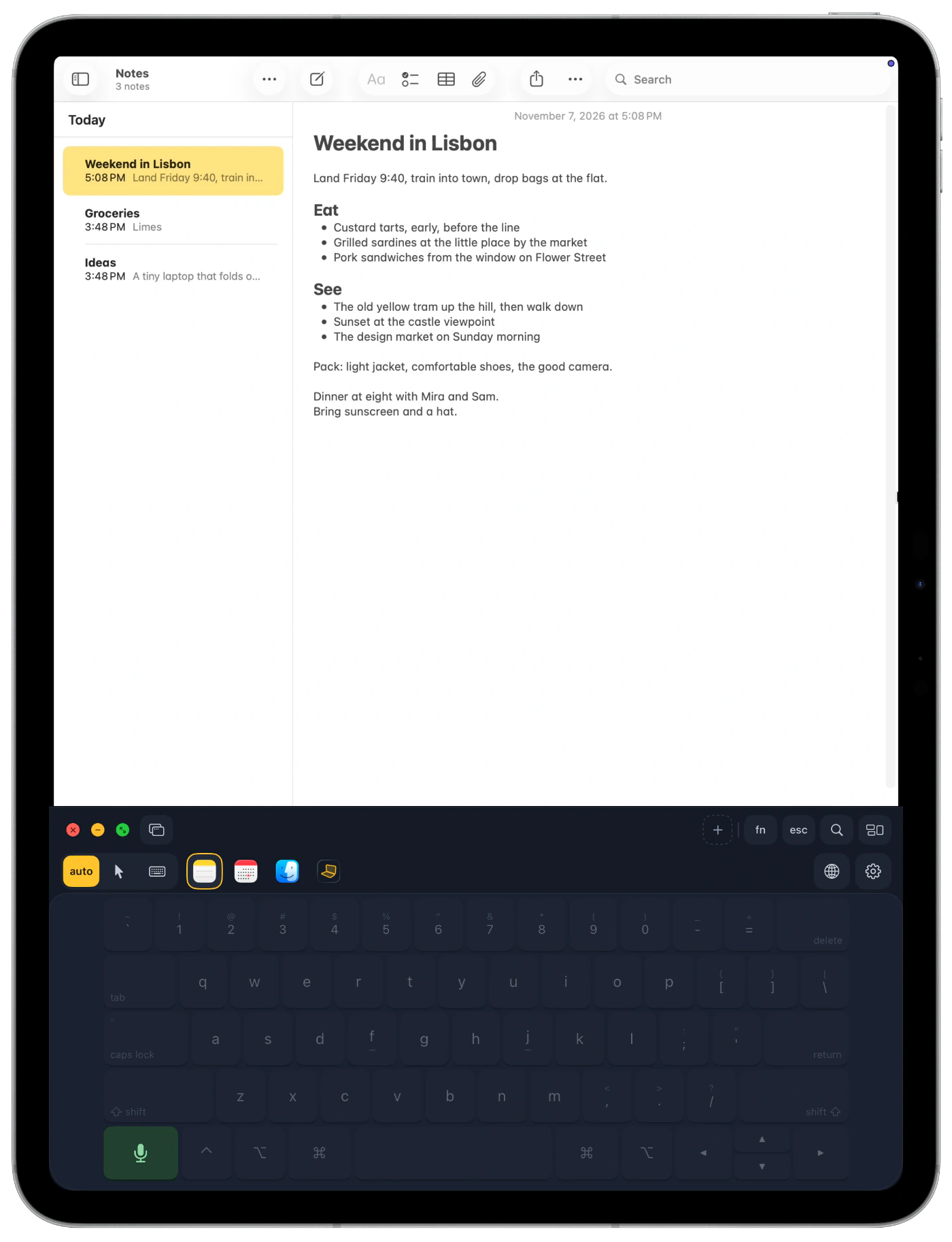
Works in portrait or landscape on iPadOS 27.1+ over Wi-Fi or Tailscale.
The 3 ways to screen share a Mac to an iPhone
| Method | How it works | Best parts | Catch |
|---|---|---|---|
| 1. Phone-first Mac app (taco) | Lightweight Mac menu-bar app + free iOS app over Noise-encrypted HEVC P2P (Wi-Fi or Tailscale) | Reshapes Mac display to fit your phone (and restores windows), fused Mac keyboard + trackpad, native iPhone Duo 90° laptop mode, zero cloud account | Mac-only host; requires macOS 26+ and iOS 27.1+ |
| 2. macOS Screen Sharing + iOS VNC app | Turn on System Settings → General → Sharing → Screen Sharing, then connect from Screens 5 or RealVNC on iPhone | Uses Apple’s built-in macOS VNC server; works on older macOS releases | Squeezes your full desktop onto a tiny screen; standard iOS keyboard covers your view; raw VNC needs SSH/VPN away from home |
| 3. Cross-platform remote desktop | Install Jump Desktop, Remio, Chrome Remote Desktop, or RustDesk on Mac + iPhone | Works with Windows and Linux too; hosted accounts work away from home without Tailscale | Usually requires a vendor account/cloud relay (except local/self-hosted modes) and traditional shrunk desktop controls on phones |
Fastest setup: Mac to iPhone or iPhone Duo with taco
If you’re on macOS 26 or later and iPhone or iPad with iOS or iPadOS 27.1 or later, taco takes about one minute to pair and skips VNC configuration completely.
Install taco for Mac
Download taco on your Mac (macOS 26 or later) and grant Screen Recording and Accessibility when prompted. No macOS VNC toggles or router ports needed.
Install taco on your iPhone or iPhone Duo
Get the free taco iOS app (iPhone or iPad with iOS or iPadOS 27.1 or later). Allow Local Network access so your Mac appears automatically on Wi-Fi.
Scan the QR code and connect
Scan the QR code in taco for Mac to pin cryptographic keys and pair in one step. Fold an iPhone Duo at 90° (or hold any iPhone upright) and start working.
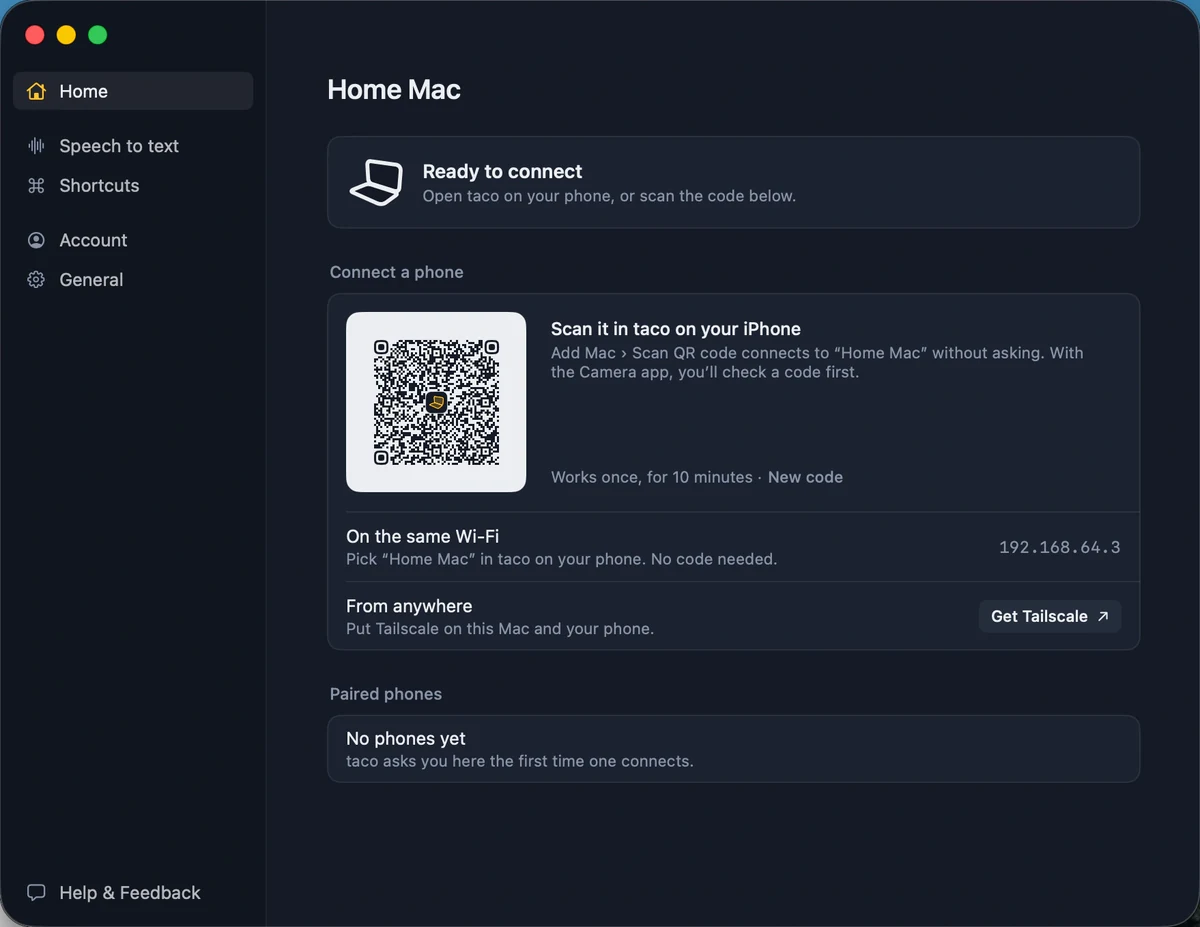
One-scan setup
No VNC ports, no IP addresses to memorize.
taco for Mac shows a single pairing window with a one-time QR code carrying your Mac’s 128-bit cryptographic key fingerprint. Scan it inside taco on your iPhone or iPhone Duo and your devices stay paired automatically on home Wi-Fi or over Tailscale.
What if you want to try macOS built-in Screen Sharing (VNC) instead?
If your Mac runs an older version of macOS or you want to test Apple’s built-in VNC server first, you can turn it on in macOS:
- Open System Settings → General → Sharing on your Mac.
- Turn on Screen Sharing (click the info button
ito restrict access to your Mac user account). - Note your Mac’s local address (for example,
your-mac.local) and connect from an iOS VNC client such as Screens 5 or Jump Desktop.
You’ll quickly notice why dedicated phone apps exist: controlling a 16:9 or 5K Mac screen over VNC on an iPhone means constantly pinching to zoom into tiny menu items and losing half the display whenever the iOS keyboard pops up.
What changes when you use an iPhone Duo
Folding an iPhone Duo at 90° turns the bottom half into a natural deck for a keyboard and trackpad. Apps built specifically for that form factor — like taco, Sill, Yosei, and Remio — keep your Mac screen cleanly above the hinge instead of overlapping it with an iOS keyboard. See our iPhone Duo Mac app comparison for how those four differ.
Frequently asked questions
Does Apple have a built-in way to screen share a Mac to an iPhone?
Not directly. Apple’s iPhone Mirroring and AirPlay mirror an iPhone screen onto a Mac, not the other way around. macOS does include a built-in Screen Sharing (VNC) server in System Settings, but Apple does not ship an official Screen Sharing app for iOS — so you still need a third-party iPhone app.
Can I use Sidecar to mirror my Mac screen to my iPhone?
No. Apple Sidecar only works with supported iPads as a second Mac display over short-range Wi-Fi or USB, not with iPhones or iPhone Duo.
Which macOS permissions are required to control a Mac from an iPhone?
Any native Mac remote desktop companion needs two macOS privacy permissions: Screen Recording (to capture and stream your Mac’s screen) and Accessibility (to post real Mac keystrokes, shortcuts, clicks, and scrolling). On iOS, Local Network lets your phone discover Macs on home Wi-Fi.
Can I control my Mac from my iPhone when I am not on home Wi-Fi?
Yes. With taco, install Tailscale on both your Mac and your iPhone or iPhone Duo. Once paired, taco reconnects directly over your Tailscale network from 5G, cafés, or travel Wi-Fi without routing traffic through any third-party cloud server.
Does screen sharing to an iPhone mess up my Mac’s external monitor layout?
With plain VNC it won’t change your monitor, which means you have to pinch-zoom a huge desktop. With taco, your Mac temporarily reshapes its display to match your phone’s aspect ratio and readable text scale, then restores your original resolution and every window position automatically when you disconnect.
Try taco on your iPhone Duo, iPhone, or iPad
Test the keyboard and trackpad right now using the built-in Practice Mac in the free iOS app — then pair your own Mac in a minute.
Free for 7 days, no credit card required. Then $19 a year.
Get taco for iPhone and iPad, free on the App Store.